

Record a lesson for your class
Students can pause, rewind and catch up on a lesson you recorded once, in the place they already open every day.
-
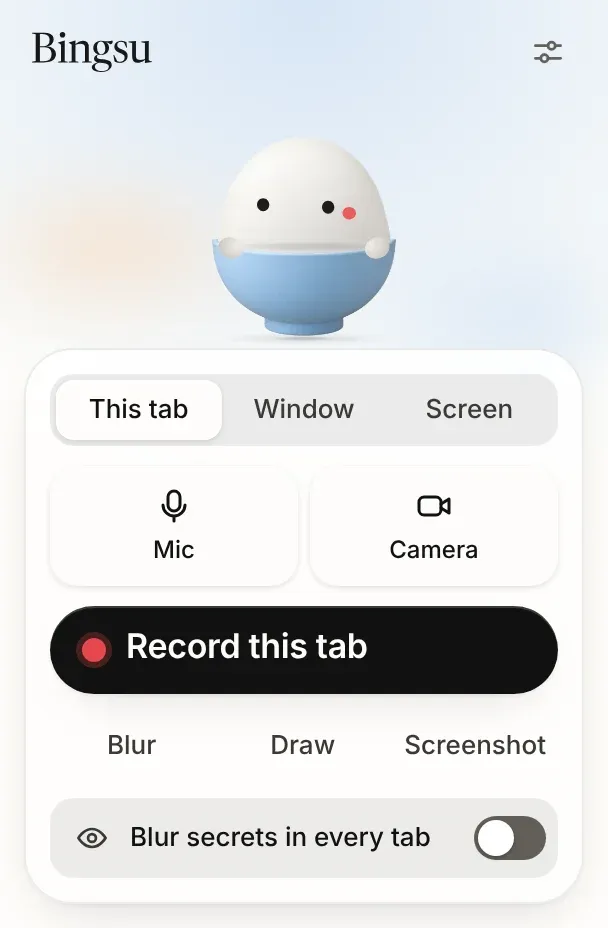
Start from the Bingsu button
-
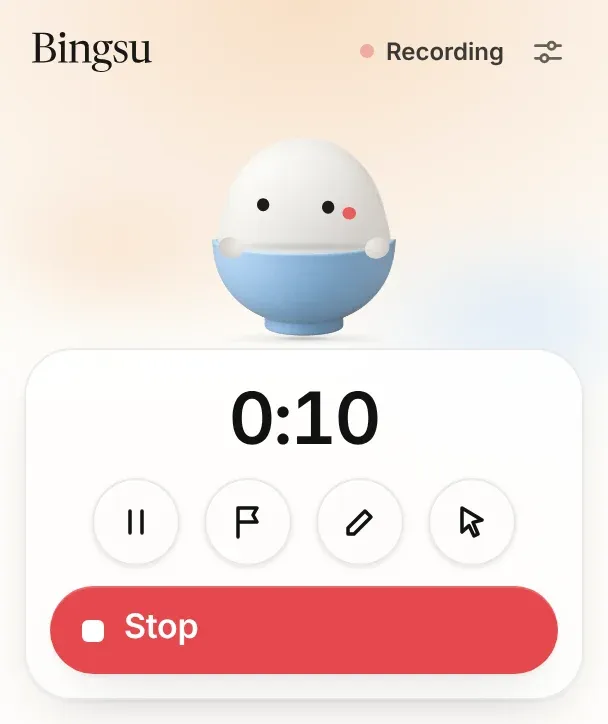
Teach while it records
-
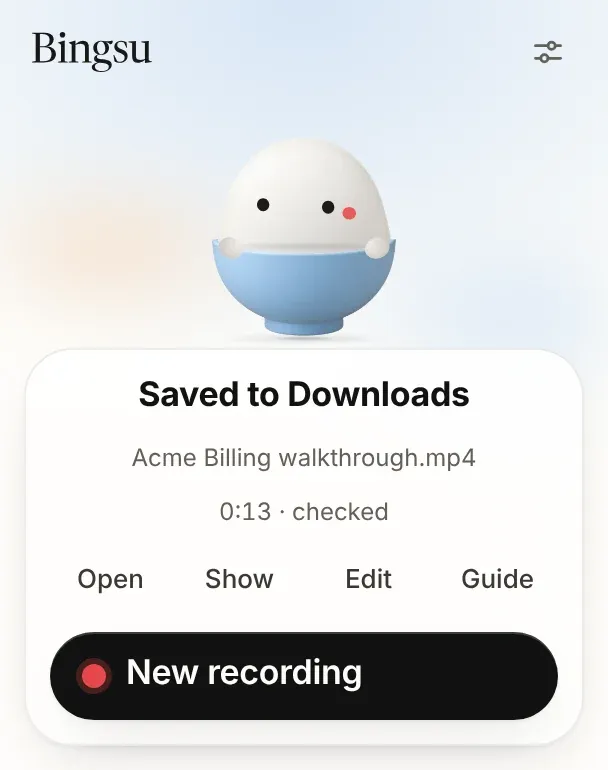
Find the MP4 in Downloads
How
- Open the page you teach from and press the Bingsu button in Chrome.
- Choose Record this tab, turn on your camera bubble if you like, and teach.
- Press Stop. The MP4 lands in your Downloads folder, in Bingsu.
- In Google Classroom or Canvas, add it to your assignment or module as a file upload.

What they get
A video inside your class, with nothing to sign up for and no link for students to lose.
What it uses

More ways to use Bingsu
- Walk a teammate through a feature A three-minute video of you clicking through a new feature answers the questions a long message leaves open.
- Run a design review on a call Record the review with everyone on the call in view, so the people who missed it hear each comment in context.
- Report a bug with a recording A recording of the bug shows the exact clicks and timing that a written report leaves out.
- Show a pull request working Reviewers approve faster when they see the change run. A clip in the pull request shows it.
- Let an agent record its own test run When an agent says the tests pass, a recording of the run shows it. The agent records its own windows while you keep working.

Next time, show it.
Record it once and send a link. Or let your agent do the recording.